Camera Objects in Alight Motion: Everything You Need to Master Camera Controls, Blur & Parallax
Honestly, the first time I added a Camera Object in Alight Motion Mod APK, I just stared at the timeline for a few minutes. I had no idea what it actually did. But the day I properly explored it, everything changed. My animations went from flat and lifeless to cinematic and immersive. Camera Objects are not just another feature they completely transform how you think about editing. In this guide, I am going to share everything I have personally learned from using Camera Objects: from camera controls and focus blur to parallax effects and motion blur. Let us get into it.
What Are Camera Objects in Alight Motion?
A Camera Object in Alight Motion is essentially a virtual camera that you add directly
into your composition. It controls what gets displayed in your video, from what angle,
and with how much depth. Think of it like a real camera on a film set except it lives
inside your digital timeline and gives you complete creative control. Before I discovered Camera Objects, every animation I made felt like a boring slideshow. Once I started using them properly, my work started looking like something
out of a professional studio. This feature is not just for advanced editors, even
beginners can create stunning results once they understand the basics.
Create Depth in Your Videos
The biggest advantage of Camera Objects is the ability to create real visual depth.
Objects positioned closer to the camera appear larger and sharper, while those placed farther away look smaller and slightly blurred. This simple principle is what separates flat amateur edits from cinematic professional work. I once set a Camera Object to a slow zoom-in on a lyrical video and the result genuinely shocked me. It felt like a completely different level of editing.
Add Focus Blur Effects
Focus Blur recreates the natural depth-of-field effect that real cameras produce
where one subject stays sharp while the background falls beautifully out of focus. In
Alight Motion, you can control this manually using three settings: Focus Distance, Depth of Field, and Blur Strength. I personally use this in almost every action sequence I create keeping the main subject sharp and letting the background blur into a gorgeous bokeh-style look.
Add Fog Effects
Fog is one of those features most people skip over and that is a big mistake. I once
added a deep grey fog while working on a dark-theme short film, and the result looked like something from a big-budget production. What makes it even better is that you can customize the fog color, so you are not limited to just white or grey. You can create yellow atmospheric haze, blue moonlit mist, or anything your creative vision needs.
Use Keyframe Animations
Combining Camera Objects with keyframes is where things really get exciting. You can smoothly animate the camera from one position to another zooming in, zooming out, tilting, panning all through keyframes. The first time I added animated camera keyframes to a parallax scene, a completely static image came alive and started breathing. It felt like real film making, all done on a mobile app.
Apply Parallax with Parenting
To create a parallax effect, you use Camera Objects together with Alight Motion
Parenting feature. When you parent different layers to the camera at different depths,
each layer moves at a different speed as the camera travels exactly like how objects at different distances appear to move at different rates in real life. I always place the background layer slowest and the foreground layer fastest. That combination creates a stunning, convincing 3D look from completely 2D artwork.
How to Add a Camera Object in Alight Motion (Step-by-Step)
A lot of people assume adding a Camera Object is complicated. I thought the same
thing at first. But it is actually one of the most straightforward processes in the app. Here are the exact steps I follow every time:
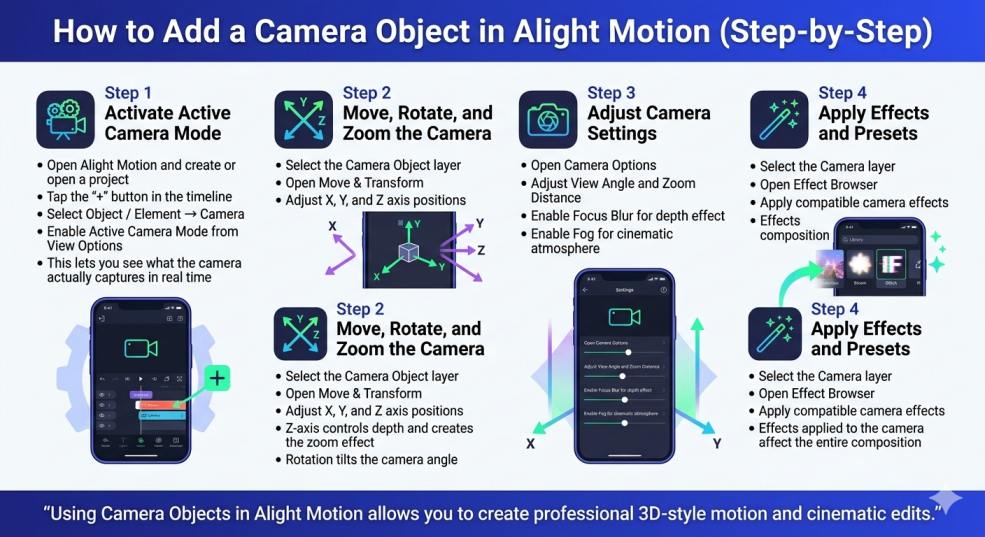
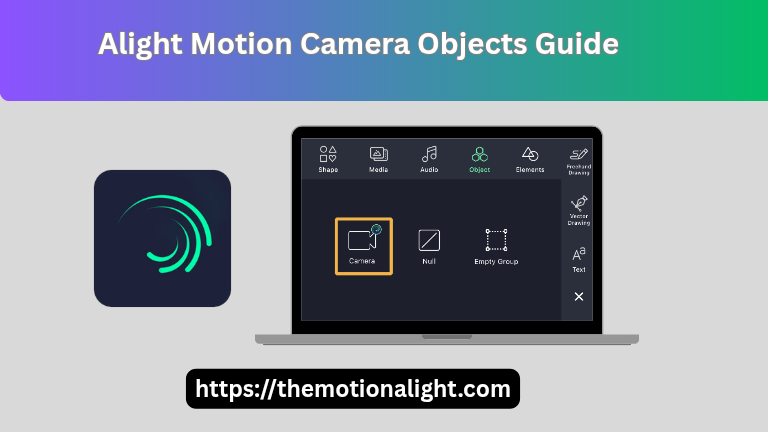
Activate the Active Camera Mode
Open Alight Motion and create a new project or open an existing one. Tap the ‘+’ button in the timeline to add a new layer. Select the ‘Object’ or ‘Element’ option from the menu,then tap ‘Camera.’ The Camera Object will now appear as a layer in your timeline. Here is the step most people miss enabling Active Camera Mode. Without it, you will only see a wire frame outline and not what the camera is actually capturing. Tap the View Options icon on the right side and select the camera icon to activate it. Now you can see exactly what your camera sees in real time.
Move, Rotate, and Zoom the Camera
Select the Camera Object and go into the ‘Move & Transform’ panel. From here you can reposition the camera along the X, Y, and Z axes. The Z-axis is particularly important it controls the camera’s depth movement, which creates your zoom effect. Adjusting rotation lets you tilt the camera, and Scale controls the overall view size of the wire frame.
Adjust Camera Settings
Head into Camera Options to find View Angle and Zoom Distance controls. These two
are interconnected when you change one, the other automatically adjusts to match. Set your Focus Blur and Fog settings here based on the look you are going for. You can toggle each on or off and fine-tune their individual properties.
Apply Effects and Presets
You can also apply effects directly to the Camera Object layer. Open the Effect Browser with the Camera layer selected and add any compatible effect. When an effect is applied to the camera rather than individual layers, it impacts the entire composition. which is what makes it such a powerful creative tool.
Understanding Camera Controls and Features
Alight Motion Camera Object is packed with features that give you precise control over your composition. Here is a breakdown of each one, explained the way I personally understand and use them:
Z-Axis in Camera Objects
The Z-axis runs perpendicular to your screen forward and backward. Moving the
camera along the Z-axis is what creates your zoom effect. A negative Z value pushes
the camera back, zooming out and revealing more of the scene. A positive Z value
brings the camera forward, zooming in tightly on your subject. My favorite techniques combining a slow Z-axis movement with keyframes to create a smooth cinematic zoom that unfolds over the duration of a clip.
Zoom Distance and View Angle
Zoom Distance determines how large or small a layer appears in front of the camera.
View Angle also called the Projection Angle controls how wide a field of view the
camera captures, measured in degrees. A higher view angle gives you a wide-angle
shot with more visible in frame. A lower view angle simulates a telephoto lens, making
subjects appear larger and more compressed. These two values always work together: when zoom distance increases, view angle decreases automatically.
Scale and Object Depth
Scale is found inside Move & Transform and controls the dimensions of the camera
wire frame essentially the width and height of what the camera covers at the Z=
plane. One important thing I learned the hard way: effects applied to normal layers do
not carry over to camera layers, and parent connections from other layers cannot affect the camera. Knowing this limitation early saves a lot of head-scratching troubleshooting later.
Focus Blur Settings
Focus Blur has three controls you need to understand. Focus Distance is the point
along the Z-axis where the camera is sharp and in focus. Depth of Field is the range
around that focus point where things remain acceptably sharp a wider depth of field keeps more elements in focus simultaneously. Blur Strength controls the intensity of the blur applied to everything outside the focus range. I typically lock the focus distance on my main subject and keep the blur strength moderate just enough to feel like real camera optics without looking overdone.
Fog Controls
Fog has three main properties. Color lets you set the exact tone of your fog white,
grey, blue, orange, anything you need. Near Distance defines how close to the camera
the fog begins layers closer than this distance remain clear and unaffected. Far
Distance sets the boundary where the fog ends. Both near and far distances shift when you move the camera, which is what makes the fog feel dynamic and naturally
integrated into your scene rather than pasted on top.
Active Camera, Default Camera, and Multiple Cameras
Here is something most Alight Motion users do not realize you can use multiple
Camera Objects within a single project. The moment I discovered this, a whole new
world of editing possibilities opened up for me.
Switching Between Cameras
In Alight Motion, the Active Camera is always the Camera Object sitting highest in the
timeline. The Default Camera is the one placed lowest. If no other camera is currently
active, the Default Camera takes over automatically during rendering. You can toggle
individual cameras on and off at any point during your timeline, which gives you control over which angle is captured at any given moment in your video.
Using Multiple Camera Objects
Using multiple cameras is an advanced technique but an incredibly powerful one. I
assign different Camera Objects to different sections of my timeline one camera
zooms in during the chorus, another pans slowly during the verse, and a third holds a
wide static shot for transitions. Together they create a cinematic multi-angle sequence inside a single Alight Motion project. This approach works especially well for music videos and action-heavy edits.
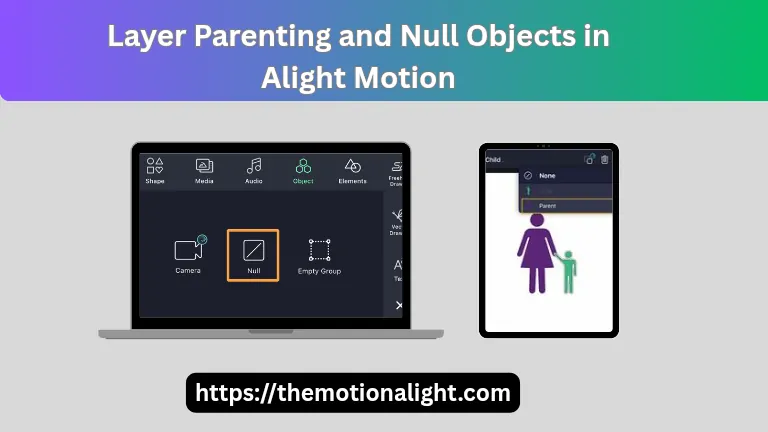
Parenting with Camera Objects in Alight Motion
Parenting is one of Alight Motion most powerful tools, and when combined with
Camera Objects it produces genuinely impressive results. When you parent a layer to
the camera, that layer follows the camera’s every movement automatically and
naturally. For parallax, here is exactly what I do: I create a background layer something like sky or mountain range a mid ground layer like trees or buildings, and a foreground layer like flowers or grass. Each layer is placed at a different Z-depth in the composition. As the camera moves, each layer shifts at a different rate based on its distance from the camera. The background barely moves, the mid ground shifts moderately, and the foreground moves the most. That layered movement creates a breathtaking parallax effect that makes 2D artwork feel genuinely three-dimensional.
Parenting is also useful for keeping text stable on screen. If your camera is moving
through a scene and you want captions or subtitles to stay fixed in place relative to the viewer not the scene simply parent the text layer to the camera. The text will move with the camera rather than staying locked to the composition, keeping it perfectly readable throughout.
Adding Effects to Camera Objects
Adding effects to a Camera Object works differently than adding effects to regular
layers. When you apply an effect to the camera itself, it influences the entire scene
every single layer in the composition is affected. This is what makes camera-level
effects so powerful and so different from layer-level effects. Three effects work particularly well on Camera Objects. Motion Blur accounts for both layer movement and camera movement when generating blur, resulting in a far more natural and realistic blur than you get from applying it to individual layers alone. Auto-Shake gives the camera a realistic handheld tremor perfect for documentary-style footage or intense action sequences where a perfectly smooth camera would feel unnatural. Oscillate moves the camera back and forth rhythmically, like a pendulum which is great for looping animations and hypnotic visual sequences. The Effect Browser contains additional effects compatible with Camera Objects. strongly recommend opening the Effect Browser with your Camera layer selected and spending time exploring what is available there are tools in there that most users never discover, and some of them can completely transform the look of a project.
Motion Blur in Alight Motion
Motion Blur is one of those effects that professional editors across the world rely on
daily and the reason is simple. In real life, when something moves fast, our eyes
perceive a slight blur. Motion Blur recreates that natural visual phenomenon inside your animation, making movement feel organic and grounded in reality.
How to Add Motion Blur in Alight Motion
Open your project in Alight Motion and select the layer you want to add motion blur to. Tap the ‘+’ icon to add a shape or element to the timeline if you have not already. Go into Move & Transform and add keyframes. one at the beginning and one at the end of the layer so the object has movement to blur.
With the layer selected, open the Effect Browser and navigate to the Blur category. Find Motion Blur and add it to the timeline. Play your preview and observe how the blur
interacts with the movement. If the result does not feel right, adjust the Tune property to increase or decrease the blur intensity until it matches the look you are after.
Motion Blur Properties
Motion Blur in Alight Motion has four key properties that give you control over how it
behaves. Tune determines the overall size and intensity of the blur increasing this
makes the blur more pronounced, decreasing it makes it subtler. Position is a toggle
that controls whether position-based movement contributes to the blur. Scale toggles whether scaling transformations generate blur. Angle controls whether rotation creates directional blur. Using all four together lets you dial in exactly the type and amount of motion blur your animation needs.
How Motion Blur Improves Video Realism
Without motion blur, animations look stiff and mechanical like a robot moving
between positions rather than a fluid, living object. The first time I applied motion blur to an action sequence, a friend watching over my shoulder said it looked like a
professionally produced film. That reaction told me everything. Motion blur is essential
for sports edits, action content, fast transitions, and any video where conveying speed
and energy is important. It is also one of the quiet secrets behind many viral TikTok and YouTube Shorts videos the movement feels smooth and real, and viewers respond to that instinctively.
Tips for Using Camera Objects Effectively
After more than a year of working with Camera Objects almost daily, I have picked up
tips and tricks that I wish someone had told me when I was starting out. Here are the
most important ones:
Understanding Coordinates
Getting comfortable with X, Y, and Z coordinates is non-negotiable if you want to use
Camera Objects to their full potential. X moves the camera left and right, Y moves it up and down, and Z moves it forward and backward through the scene. My recommendation is to experiment with one axis at a time before combining multiple
axes. Once you understand how each one behaves independently, combining them to create complex camera paths becomes intuitive rather than confusing.
Using Parallax Effect Properly
For a convincing parallax, the key is placing your layers at genuinely different Z-dept
values not just slightly different ones. Give your background layer a significantly
negative Z value to push it far from the camera, and bring your foreground layer much closer with a higher value. The greater the difference in depth between your layers, the more dramatic and convincing the parallax becomes when the camera moves. This technique is particularly effective for travel vlogs, title sequences, and lyrical video backgrounds.
Extra Pro Tips
- Always keep Active Camera Mode on while editing your Camera Object working without it is like editing blindfolded.
- Use Bezier curves on your camera keyframes for smooth, natural movement linear keyframes feel robotic and jarring in comparison.
- When using multiple cameras, time each one to specific sections of your edit to keep the workflow clean and organized.
- Keep Focus Blur subtle real cameras do not produce extreme blur at every focal distance, and going overboard looks artificial.
- Apply the Auto-Shake effect to your Camera Object for an authentic handheld feel ideal for documentary-style or raw action content.
Conclusion
Camera Objects in Alight Motion are one of those features that genuinely change the
way you edit. The first time I used them properly, my animations made a complete
transformation from flat, static compositions to layered, cinematic scenes with real
depth and atmosphere. Focus Blur adds professional depth-of-field. Fog creates mood and atmosphere. Parallax brings 2D art to life. Motion Blur makes movement feel real Together, these tools give you a level of creative control that most mobile editors cannot offer. Whether you are a beginner just discovering Alight Motion or an experienced editor looking to level up, Camera Objects are absolutely worth mastering. It takes some time to get comfortable with them, but once you do, the quality of your videos will speak for itself. Open Alight Motion right now, add a Camera Object, and start experimenting the results will show you exactly why this feature is a game-changer.