
Particle Effects & Simulation in Alight Motion for Stunning Videos
If you’ve ever spent a late night on your phone, layering effects in Alight Motion and wondering why your video still doesn’t feel alive chances are, you haven’t truly unlocked the particle system yet. I’ve been creating motion graphics and video edits on Alight Motion for years, and I can tell you honestly: particle effects and simulation are where the magic happens. They turn a flat edit into something cinematic. Something that makes people stop scrolling. This guide breaks down everything from understanding what particle simulation actually is inside Alight Motion mod APK, to setting it up step by step, to combining it with other effects for results that genuinely stand out.
What Are Particle Effects in Alight Motion?
Particle effects are visual simulations that generate large numbers of small elements think sparks, dust, snowflakes, fireflies, smoke trails, confetti and animate them as a system. In Alight Motion, the Particle Emitter effect gives you direct control over how these particles are born, how they move, and how they die. Unlike static effects like color grading or blur, particles behave dynamically. They respond to settings you define: gravity, speed, opacity fade, rotation, spread angle, and lifespan. This
makes them feel real. The smoke doesn’t just sit on screen it drifts. The sparks don’t repeat they scatter. That natural unpredictability is what gives particle effects their visual power.
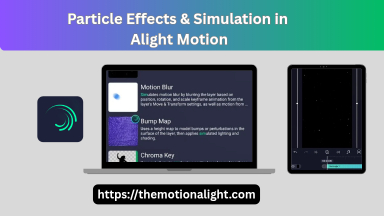
Where to Find the Particle Emitter in Alight Motion
Open your project in Alight Motion, then follow these steps:
- Tap the + button to add a new layer.
- Select Effects Layer (not a media layer).
- In the Effects panel, search for “Particle”.
- Tap Particle Emitter to add it.
You’ll now see a blank canvas with a default particle system running. It usually looks like small.
white dots streaming in one direction. That’s your starting point and it’s far from finished.
Understanding Particle Emitter Settings (The Part Most People Skip)
This is where most creators go wrong. They add the Particle Emitter, see the default dots, tweak the color once, and call it done. Let me walk you through the actual parameters that matter.
Spawn Rate
This controls how many particles are generated per second. A low spawn rate (10–30) feels sparse and elegant good for firefly or star effects. A high spawn rate (200+) builds dense clouds, fire, or smoke. For a dreamy bokeh overlay, I usually stay around 40–60. For an explosion simulation, I push it past 300.
Particle Lifespan
This defines how long each particle lives before disappearing. Short lifespan with high spawn rate creates a constant, fast-moving swarm. Long lifespan with moderate spawn builds a slow, atmospheric drift. For rainfall simulation, I set lifespan to 1.5–2 seconds and direction straight down with slight randomness.
Speed and Direction
The Emission Angle and Speed parameters define where particles go and how fast. Setting emission angle to 270° sends them upward (like rising embers). Spreading the angle to 360° creates an outward burst effect perfect for explosion simulations.
Real example: I once made a smoke trail effect for a title card by setting emission angle to 90° (upward), speed at 80, lifespan at 4 seconds, and spawn rate at 60. With a dark gray color and soft opacity fade, it looked indistinguishable from actual smoke footage.
Size and Size Randomness
Always enable size randomness. A uniform particle size looks artificial. When particles vary slightly in size, the simulation gains depth and realism. I typically set base size to around 8–12px and randomness to 50–80%.
Opacity and Fade
The fade-out over lifespan setting is what separates amateur particle work from polished results. Enable it. Particles that disappear abruptly look like bugs in the system. Particles that fade out feel like they naturally dissolve into the environment.
Gravity
Gravity pulls particles downward over time. Enable it for falling elements (rain, snow, ash, confetti). Disable it or set it negative for rising effects (embers, mystical energy, upward smoke).
5 Particle Simulation Effects You Can Build Right Now
Golden Dust Overlay for Cinematic Intros
- Spawn Rate: 50
- Color: #FFD700 (gold) with slight warm variation
- Size: 6px, randomness 70%
- Lifespan: 3 seconds
- Opacity fade: enabled
- Gravity: slight negative (particles drift upward)
- Blend mode: Screen
Set this on a layer above your video clip and drop the layer opacity to 60–70%. The golden dust floats through your footage without overpowering it. Works beautifully on portrait videos.
Ember and Fire Simulation
- Spawn Rate: 200
- Colors: red, orange, yellow (use color over lifespan).
- Speed: 120, Emission angle: 270° (upward), Spread: 40°
- Gravity: slight positive (embers slow and fall)
- Size: 4–10px, randomness 80%
- Lifespan: 2 seconds
Pair this with a Light Glow effect on the particle layer for that warm, glowing quality that fire actually has. Then add a subtle orange color grade to your base video for full immersion.
Snowfall for Seasonal Content
- Spawn Rate: 80
- Color: white, soft blue tint variation
- Speed: 40, Direction: 90° (downward), Spread: 60°
- Gravity: enabled
- Size: 4–8px, randomness 90%
- Lifespan: 4 seconds
Add Motion Blur to the particle layer with a subtle downward blur. This simulates depth of field in snowfall, where some flakes near the “camera” are blurred. The effect is immediately more realistic.
Magical Energy Burst (Anime-Style Edits)
- Spawn Rate: 300 (brief, using keyframe to spike then drop to 0)
- Colors: cyan, white, light blue
- Speed: 250, Spread: 360°
- Gravity: disabled
- Size: 5–15px, randomness 90%
- Opacity fade: very fast (0.5s lifespan)
The key here is keyframe animation on spawn rate. Set spawn rate to 0, keyframe it, then at the moment of impact spike it to 300 for exactly 3 frames, then keyframe back to 0. The result is a sharp burst that feels like an energy shock wave no looping, no repetition.
Floating Bokeh Particles for Music Videos
- Spawn Rate: 30
- Color: pastel tones soft pink, purple, white
- Speed: 20, Spread: 360°
- Size: 15–25px, randomness 60%
- Lifespan: 5 seconds
- Blur: apply Box Blur to the particle layer itself
The blur applied directly to the particle layer is the trick here. It mimics out-of-focus light circles without needing actual camera optics. Combined with the Screen blend mode, it creates that dreamy music video texture that used to require desktop software.
Keyframe Animation with Particle Effects
Static particle effects are good. Keyframe Animated particle effects are great. Alight Motion’s keyframe system lets you animate virtually every particle parameter over time.
Here’s a workflow I use constantly: I animate the Emission Angle using keyframes so particles start shooting left, then slowly sweep right over a 3-second clip. The effect feels like a dynamic wind shift subtle but deeply satisfying.
You can also keyframe:
- Spawn rate — for bursts vs. sustained effects
- Color — particles shift hue over time (sunrise palette transitions)
- Speed — build from slow drift to fast scatter
- Position of the emitter source — moving emitter across the screen like a magic wand trail Moving the emitter position across the frame using keyframes is one of the most underused techniques. Anchor the emitter to a subject using Layer Parenting and the particles will follow the movement automatically.
Layering Particle Simulation with Other Effects
Particle effects work best when they’re not isolated. Here’s how to combine them:
- Particles + Light Glow: Adds luminosity to each particle, making them feel lit from
within. Essential for fire, energy, and magical effects. - Particles + Motion Blur: Adds directional streaking to fast-moving particles. Turns sparks into streaks. Turns snowflakes into velocity lines.
- Particles + Color Grading: Apply a color grade to your particle layer independently. Warm particles on a cool background create natural visual contrast.
- Particles + Blend Modes: Screen and Add blend modes make dark backgrounds
disappear, leaving only the glowing particles the clean way to float particles over footage.
Common Mistakes to Avoid
- Using too many particles: Dense particle systems on mobile can slow rendering and even crash the export. Test at lower spawn rates first, then scale up carefully.
- Ignoring blend modes: Default blend mode (Normal) will show your particle layer as a solid rectangle with a background. Always change to Screen, Add, or Multiply.
- Not fading opacity over lifespan: This single setting separates realistic simulation from obviously digital elements. Enable it every time.
- Static emitter position: Lock the emitter to one corner and your effect looks like a
screensaver. Animate the emitter position or use Layer Parenting to attach it to motion.
Why Particle Effects Matter for Video Performance
Beyond aesthetics, particle simulation affects how viewers engage with your content. Visual complexity when balanced correctly holds attention longer. Motion design research consistently shows that layered depth (foreground particle overlay, subject, background) increases perceived production value. For creators producing content for Instagram Reels, YouTube Shorts, or TikTok, the first 1–2 seconds decide everything. A well-crafted particle burst on your title card is often the difference between a scroll-past and a save.
Final Thoughts
Alight Motion particle emitter is one of the most capable tools in the app and one of the most underestimated. The real skill isn’t in knowing where to find it. It’s in understanding how each parameter shapes the simulation, and how to combine it intelligently with keyframes, blend modes, and complementary effects. Start with one of the five presets above. Spend time with just the spawn rate and lifespan settings first. Once those click, the rest follows naturally. The first time your smoke effect
actually drifts, or your energy burst fires at exactly the right frame you’ll understand why this feature is worth mastering.