Layer Parenting & Null Objects in Alight Motion: Complete Guide
If you have ever tried to animate multiple layers one by one and felt like pulling your hair out trust me, you are not alone. I remember the first time I was building a character animation in Alight Motion with about 15 separate layers. Moving each one individually was a nightmare. That is exactly the moment when layer parenting changed everything for me. And then null objects took it a whole step further. In this guide, I am going to walk you through everything from the basics of layer parenting to using null objects like a pro. No fluff, just the real stuff that actually works inside Alight Motion.
What is Layer Parenting in Alight Motion?
This feature is a system that lets you connect two or more layers together in a parent-child relationship. When you set one layer as the “parent,” every movement, rotation, or scale change you make to that parent layer automatically applies to its child layers as well. Think of it like a puppet. The strings are the parent layer wherever you move the strings, the puppet (child layer) follows. You are not controlling each body part separately; you are controlling the whole thing from one point. This is one of those features that separates casual editing from professional-level motion graphics work on mobile.
Benefits of Using Layer Parenting
Make Video Editing More Efficient
Instead of keyframing 10 layers individually, you keyframe just the parent layer once. All the child layers follow along automatically. This alone can cut your editing time in half sometimes more. For example, I once built a logo animation with 8 text layers and 4 shape layers. Instead of animating each one separately, I grouped them all under a single null object (more on that later) and animated just that. Done in minutes instead of an hour.
Better Project Organization
Layer parenting also brings a clean, logical structure to your timeline. You can see at a glance which layers belong together, which makes revisiting and editing a project much easier especially if you are working on something complex or coming back to it after a few days.
Create Complex and Professional Animations
With parenting, you can build layered, multi-part animations that look like they were made in professional desktop software right from your phone. Character rigs, mechanical movements, bouncing logo reveals all of it becomes possible when layers are connected smartly.
How to Parent Layers in Alight Motion

Setting Layer Parents
Here is exactly how to set up this parent-child system in the app:
- Open your project and make sure you have at least two layers on the timeline.
- Tap on the layer you want to make the child layer.
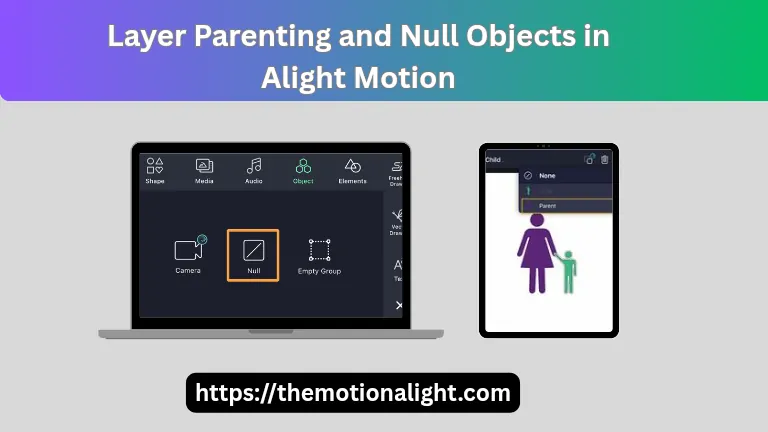
- Look at the top of the timeline you will see a Layer Parent button (it looks like a link icon).
- Tap it. A drop down menu will appear listing all other layers in your project.
- Select the layer you want to be the parent.
- Done you will see an arrow or indicator showing the parent-child link.
To remove parenting later, just tap the Layer Parent button again and select None from the menu.
One tip I always give people: set your layers at their intended starting positions before you establish the parent
relationship. If you set parenting while things are mid-animation, you can get unexpected position jumps.
Understanding Parenting Order and Hierarchy
This is where it gets interesting. You can actually chain parents so Layer A can be the parent of Layer B, and Layer B can be the parent of Layer C. This creates what is called a parenting hierarchy. When you animate Layer A, both B and C follow it. When you animate Layer B, only C follows it. Layer A is not affected.
The key rules to remember:
- Each child layer can only have one parent.
- A parent layer can have multiple children.
- Layer order on the timeline does not affect parenting what matters is the parent-child connection you set.
Animating Parented Layers
Once your layers are connected, animate the parent layer first. Set your keyframes for position, rotation, and scale on the parent. All child layers will automatically inherit that motion. After that, you can go into each child layer individually and add its own additional animation on top of what it inherited. This is how you get that layered, natural-looking motion for example, a character’s body moving forward while its
arm swings slightly on its own. One thing to keep in mind: animating a child layer does not affect the parent at all. Motion flows downward in the hierarchy, never upward.
Effects and Parenting
Using Effects with Parenting
This is something a lot of people miss. Effects that you apply to a parent layer also affect all child layers beneath it. This means you can apply effects like Auto Shake, Oscillate, Swing, or Bend to the parent and watch all children shake, swing, or bend together. This is incredibly powerful for things like a shaking camera effect, where everything in the scene needs to move the same way at once.
The Parenting Helper Effect
The Parenting Helper is a special effect you apply to a child layer to customize how it responds to its parent. Without it, the child copies the parent exactly. With it, you get full control. There are four main modes:
- Normal — child copies parent movement exactly (default behavior).
- Locked — child follows position changes but ignores rotation and scale.
- Weighted — you define a percentage of how much of the parent’s motion applies. For example, if the parent.
rotates 30 degrees and you set Rotate Weight to 50%, the child only rotates 15 degrees. - Auto Rotate — makes the child rotate automatically based on the direction of movement.
The Weighted mode is particularly useful when you want secondary motion — like a tail that lags slightly behind a character’s main body movement. It gives your animations that organic, lifelike quality.
Null Objects in Alight Motion
A null object is an invisible layer. It has no visual appearance in your final video no color, no shape, nothing. But it exists on the timeline, and it can hold position, scale, and rotation data. By itself, a null object does nothing useful. But when you make it a parent layer, it becomes one of the most powerful tools in your editing workflow.
Here is the magic: because the null object is invisible, you can use it as a control point to move groups of layers around without any visual clutter. You animate the null all the children follow and the null itself never shows up in your export.
How to Add a Null Object

Adding it is straightforward:
- Tap the + (Add Layer) button at the bottom of the interface
- Select Object (or Element, depending on your version)
- Choose Null from the list
A new layer will appear on your timeline with a wire frame indicator showing its position and boundaries. You can
move, scale, and rotate this null just like any other layer even though it is invisible in the output.
Using Null Objects for Parenting
This is where the real power comes in. Instead of parenting your layers directly to each other, you parent them all to a null object. Then you only need to animate the null to move everything at once. Practical example: Let’s say you have a social media intro animation with a logo, a text block, and three shape elements. Instead of animating each one separately, you:
- Create a null object.
- Parent all five layers to the null.
- Animate the null to slide in from the left.
All five elements move together, perfectly synchronized, with one set of keyframes. - You can also use multiple invisible control layers to create layer groups. Group A has its own null, Group B has its own null you can animate them independently or even parent one to another for multi-level control.
Advanced Parenting Techniques
Once you are comfortable with the basics, here are a few techniques that will genuinely elevate your work:
Chain parenting for character rigs: Build a simple character with a body, arms, and head. Parent the arms to the body, and the head to the body as well. Now when you move the body, the whole character moves. You can still
individually animate each arm and the head on top of that.
Using nulls with effects: Apply effects like fractal noise or motion blur to a null layer, then parent other layers to it. The effect applies across all children in a very controlled way.
Animating the parenting connection itself: You can actually change a layer’s parent mid-animation. This lets you create “hand-off” animations where one element passes control to another useful for complex mechanical or
character animations.
Pre composing nested layers: If your hierarchy gets deeply nested and performance starts to suffer, group related layers into pre comps and parent those pre comps instead.
Troubleshooting Parenting Issues
Here are the most common issues people run into and how to fix them:
Layers jump unexpectedly when parenting is set: This usually happens because the playhead is in the middle of an animation when you set the parent. Always set parenting relationships at your starting position, before you start
keyframing.
Animation looks wrong after adding a child: Temporarily disable the parent by setting it to None and check the child’s own animation. Then re-enable parenting and see how they interact.
Too many parenting levels slowing things down: Try to keep your hierarchy to 3-4 levels maximum. If things get complex, pre compose nested groups.
Child is moving in an unexpected direction: Check the Parenting Helper effect settings on that child layer there may be a Weighted or Locked mode applied that is modifying the inherited motion.
When to Use Layer Parenting
Layer parenting is worth using whenever:
- You have multiple layers that need to move together as a unit.
- You are building any kind of character, mascot, or multi-part object animation.
- You want to add secondary motion (something that follows a main animation but has its own subtle movement).
- You are creating a complex scene and need to keep the timeline organized.
- You want to apply a single effect — like shake or oscillate — across multiple layers at once.
If you are doing simple edits with 2-3 layers, you probably do not need it. But the moment your project gets complex, parenting becomes essential.
Conclusion
These two features are among the most underused in Alight Motion especially among mobile editors. Most people ignore them because they sound technical. But once you actually use them, you realize they make everything easier, faster, and more professional.
Start simple: take your next project and try parenting just two layers together. See how it feels. Then experiment with an invisible control layer to group a few elements. Build from there.
The difference between a good Alight Motion edit and a great one often comes down to how smartly the layers are connected. Now you know how to connect them the right way.