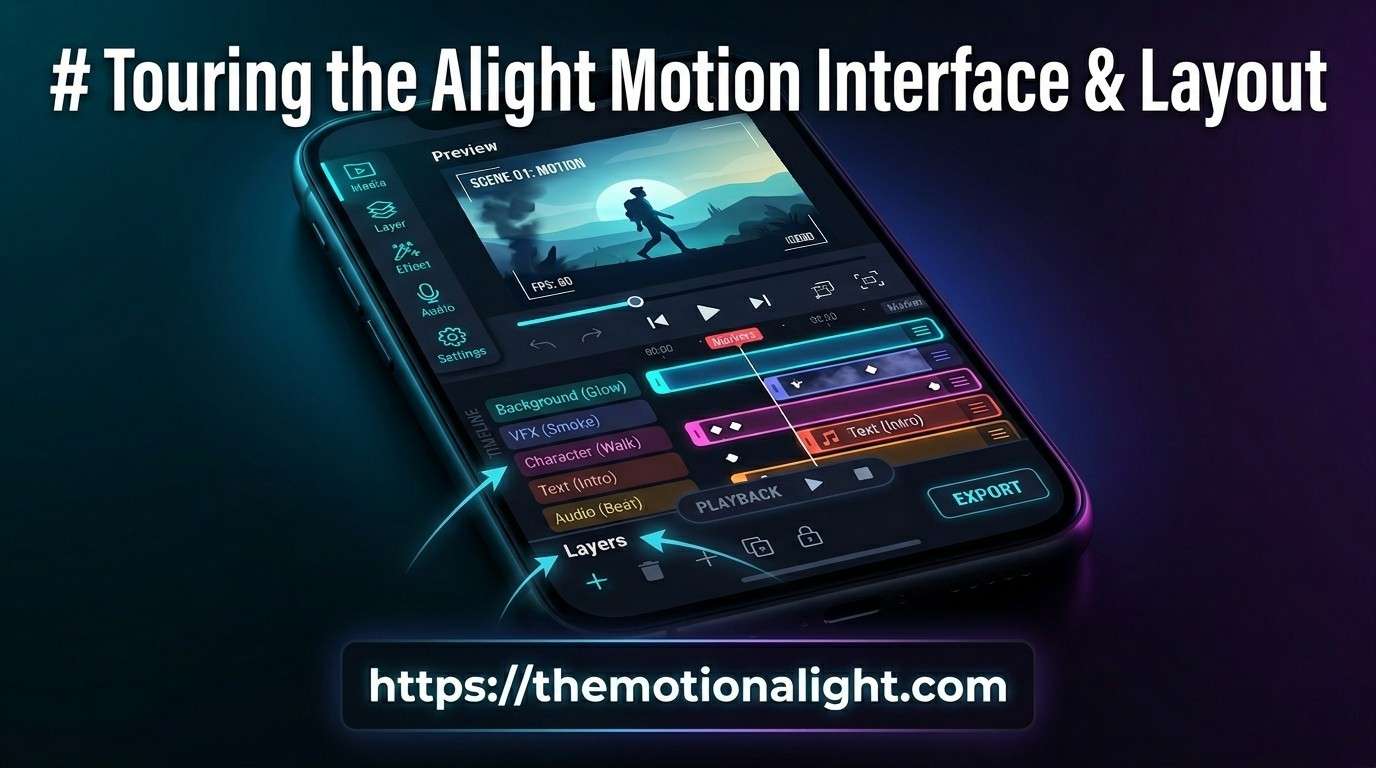
Touring the Alight Motion Interface and Layout: A Complete Guide for 2026
The first time you open Alight Motion, it can feel like a lot. Panels everywhere, a timeline stretching across the bottom, buttons without obvious labels. That feeling is completely normal, and it goes away faster than you might expect once someone walks you through what everything actually does.
Alight Motion is a professional-grade motion graphics and video editing application built for Android and iOS. Developed by Alight Creative (formerly part of Adobe’s mobile division), it brings keyframe animation, vector editing, color grading, and multi-layer compositing to your phone. Creators on Instagram, TikTok, and YouTube use it to build polished edits, animated logos, beat-sync videos, and cinematic shorts entirely on mobile devices.
This guide takes you on a full tour of the interface, section by section. By the time you finish reading, you will know exactly where to look for every tool, how the workspace is organized, and why the layout is designed the way it is.
The Home Screen: Where Every Project Starts
When you launch Alight Motion for the first time, you land on the home screen. This is your project management hub. Think of it as a dashboard that keeps all your work organized in one place.
The large plus (+) button at the bottom center is the most important element on this screen. Tapping it opens the new project setup dialog, where you choose your canvas settings before anything else.
When creating a new project, Alight Motion asks you to set:
- Resolution (360p, 720p, 1080p, 2K, 4K, or custom)
- Frame rate (24fps for cinematic, 30fps for standard, 60fps for smooth motion)
- Background color (the starting canvas color, editable later)
- Project name (helps you stay organized when managing multiple edits)
Below the plus button, your existing projects appear as thumbnail cards. Each card shows a preview frame, the project name, resolution, and the last time you edited it. You can tap and hold any card to rename, duplicate, delete, or export the project. The search bar at the top helps when your library grows large.
At the top right corner, you will find the account icon. This is where you manage your Alight Motion subscription, access cloud storage, and toggle settings like notifications and theme preferences. The three-dot menu next to it opens import options, allowing you to bring in project packages (AEMOT files) shared by other creators.
The Project Workspace: Your Main Editing Environment
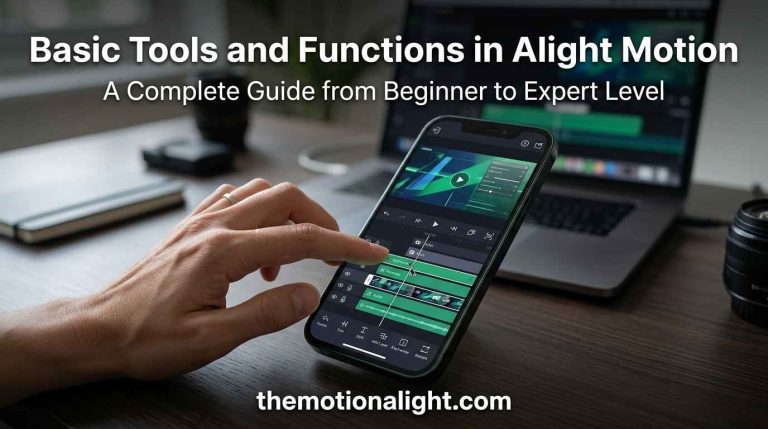
Once you create or open a project, the workspace loads. This is where you spend the most time. The layout is divided into three main zones that work together: the preview window at the top, the toolbar on the sides, and the timeline at the bottom.
The Preview Window
The preview window occupies the upper portion of the screen. It shows a real-time rendering of your project at the current playhead position. When you move an object, adjust a color, or apply an effect, the change appears here instantly.
You interact with objects directly in the preview window. Tap a layer to select it, then drag to reposition it on the canvas. Pinch with two fingers to scale it. Rotate with a twist gesture. The selection handles that appear around a selected object give you fine control over position and size.
The safe zone overlay (enabled from the view options) shows you how your content will appear on different screen sizes and aspect ratios. This is particularly useful when editing vertical content for Reels or Shorts alongside horizontal versions.
The Top Toolbar
Running along the top of the workspace is the primary toolbar. Here you will find:
- Undo and Redo buttons (the arrows on the left)
- Project settings icon (opens resolution, frame rate, and background settings)
- Export button (top right, takes you to the render options)
- The three-dot overflow menu (accesses grid, guides, safe zone, and ruler tools)
The undo and redo buttons deserve special mention because Alight Motion keeps a deep history of your changes. You can undo dozens of steps back, which gives you genuine freedom to experiment without worrying about breaking your project.
The Timeline: The Heart of Alight Motion
The timeline sits at the bottom of the workspace and controls everything related to time. If the preview window shows you what your project looks like, the timeline shows you when things happen. Understanding it is probably the single most important skill you can develop in Alight Motion.
Timeline Structure and Navigation
At the very top of the timeline panel is the time ruler, a horizontal strip marked with timestamps. The playhead (a vertical orange line) moves along this ruler as your video plays. Drag the playhead to scrub through your project and preview any moment instantly.
Pinch horizontally on the timeline to zoom in or out. Zooming in gives you frame-by-frame precision, which is essential when syncing animations to a beat or aligning elements that appear for only a fraction of a second. Zooming out shows the full project length and helps with structural decisions about pacing.
Below the time ruler, each layer appears as a horizontal bar. The left side shows the layer name and a small icon indicating the layer type. The right side shows the layer bar itself, which represents how long that element exists in the video. Drag the left or right edge of the bar to trim it. Drag the entire bar to reposition when it appears.
The Layer System
Layers are the building blocks of every project in Alight Motion. Every element you add, whether it is a video clip, an image, a text caption, a shape, or an audio track, becomes a separate layer in the timeline.
The order of layers in the timeline determines their visual stacking order on the canvas. Layers higher in the list appear in front of layers lower in the list. So a text layer placed above a background video will always appear on top of it. You can drag layers up or down to change this order at any time.
On the left side of each layer row, you will find several controls:
- The eye icon toggles layer visibility. Hiding a layer removes it from the preview without deleting it.
- The lock icon prevents accidental edits to a layer while you work on others.
- The solo button (on supported versions) isolates a layer so only it is visible.
- The layer type icon identifies what kind of content the layer contains.
You can also group layers together. Grouping lets you move, transform, and apply effects to multiple layers simultaneously without flattening them. This is especially useful for complex scenes with many elements that need to animate together.
Keyframes and Animation
Keyframes are the mechanism behind every animation in Alight Motion. A keyframe is a saved state of a property at a specific point in time. When you place two keyframes with different values, Alight Motion automatically calculates and renders the transition between them.
To add a keyframe, select a layer, move the playhead to a specific time, and tap the diamond icon next to any property you want to animate. Position, scale, rotation, opacity, color, and effect parameters can all be keyframed individually. The keyframes appear as small diamonds on the layer bar in the timeline.
The graph editor, accessible by tapping the curve icon on a keyframed layer, lets you control the speed and easing of animations with precision. A linear curve creates a constant speed. An ease-in curve starts slow and accelerates. An ease-out curve decelerates into the end position. Mastering the graph editor is what separates mechanical-looking animations from ones that feel natural and deliberate.
The Add Layer Panel: Bringing Content Into Your Project
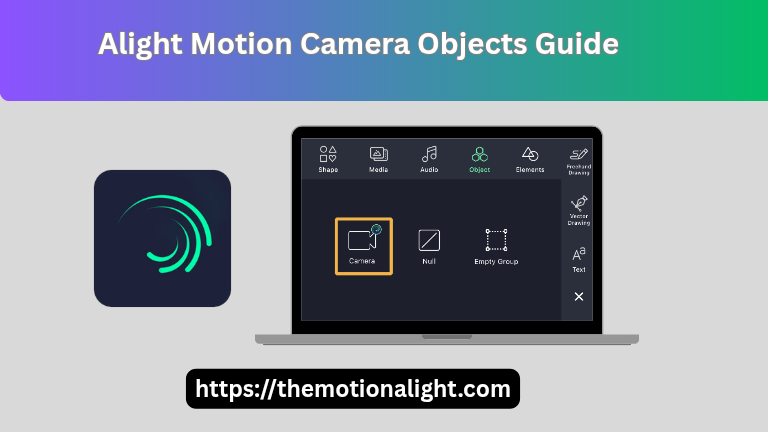
Tapping the plus (+) button inside the workspace (different from the home screen plus button) opens the add layer panel. This is where you import or create new content for your project.
The available layer types include:
- Media: imports video clips, photos, and image sequences from your device gallery
- Audio: adds music tracks, sound effects, or recorded voice narration
- Text: creates animated text layers with full typography controls
- Shape: draws vector rectangles, ellipses, polygons, and freehand paths
- Solid: adds a flat color layer, often used as background fills or color overlays
- Adjustment layer: applies effects to every layer below it simultaneously
The adjustment layer is a particularly powerful feature. Rather than applying an effect separately to ten different layers, you place a single adjustment layer above all of them and apply the effect once. Every layer beneath it receives the treatment. This saves time and keeps your effects editable in one place.
The Properties Panel: Editing What You Select
When you select a layer, the properties panel appears. This panel changes depending on what type of layer you have selected, showing only the controls that are relevant to that content type.
Transform Properties
Every layer has transform properties. These include position (X and Y coordinates on the canvas), scale (size as a percentage), rotation (in degrees), and anchor point (the pivot from which scaling and rotation occur). You can edit these numerically by tapping the values, or visually by manipulating the handles in the preview window.
Color and Blending Controls
The color section lets you adjust the hue, saturation, brightness, and alpha (opacity) of the selected layer. The blending mode dropdown changes how the layer interacts with layers beneath it. Options include Screen (lightens), Multiply (darkens), Overlay (adds contrast), and about twenty others. Experimenting with blending modes is one of the fastest ways to create interesting visual relationships between layers.
The Effects Library
The effects button opens a library of visual effects you can apply to the selected layer. The library is organized into categories including Blur, Color Correction, Distortion, Glow, Noise, Transform, and more. Each effect has adjustable parameters, and every parameter can be keyframed to animate over time.
You can stack multiple effects on a single layer. The order in which they appear in the effects list determines how they interact. Applying a blur before a glow produces a different result than applying the same glow before the blur. Learning the effect order gives you much more precise creative control.
Text Layers: Typography in Alight Motion
Text layers in Alight Motion are far more capable than a simple caption tool. When you add a text layer and tap to edit it, a full text editor opens with controls for font family, weight, size, tracking (letter spacing), leading (line height), alignment, and color.
You can animate text on a character-by-character or word-by-word basis using the text animator. This feature lets you create effects like characters flying in from different directions, words fading in sequentially, or letters bouncing to a beat. The text animator panel appears inside the layer properties when a text layer is selected.
Alight Motion supports custom font imports. You can download fonts in TTF or OTF format and load them into the app through the font manager. This opens the door to matching your typography to specific brand guidelines or personal aesthetics beyond the built-in font library.
Vector Shape Tools: Drawing Inside the App
One feature that sets Alight Motion apart from simpler mobile editors is its vector drawing capability. When you add a shape layer, you can create and edit vector paths directly on the canvas. Vectors stay sharp at any resolution because they are mathematically defined rather than pixel-based.
The shape tool bar offers preset shapes (rectangle, ellipse, polygon, star) as well as a freehand path tool using Bezier curves. You can edit individual anchor points, adjust handles to control curve tension, and fill shapes with solid colors, gradients, or even other layer content as a mask fill.
Shapes can also be used as masks. Enabling the mask property on a shape layer causes the shape to reveal or hide the layer beneath it based on its boundaries. Animated masks are how creators achieve clean reveal effects, spotlight animations, and creative wipe transitions.
Audio in the Timeline: Sound Editing Tools
Audio layers appear in the timeline just like visual layers, with their own bar representing their duration. You can trim audio the same way you trim video, by dragging the edges of the bar. Moving the bar repositions when the audio starts in the video.
Tapping an audio layer opens its properties, where you can adjust volume, set fade-in and fade-out durations, and enable looping. The volume property is keyframeable, so you can create dynamic audio movements like music ducking (quieting the music when a voiceover starts) by setting volume keyframes at the right moments.
The waveform display on audio layer bars helps you visually identify beats and transients, which is extremely useful for beat-sync edits. When you zoom in on the timeline, the waveform becomes clearer and you can place video cuts or animation keyframes precisely on musical beats.
The Export Screen: Getting Your Video Out
When your project is ready, tapping the export button (the arrow icon in the top toolbar) takes you to the export settings screen. The choices you make here determine the quality and format of your final output.
The export options include:
- Video file (MP4 format, with selectable resolution from 360p to 4K and frame rate)
- GIF animation (smaller file size, useful for loops and web graphics, limited color range)
- Image sequence (exports each frame as a separate image file for compositing in other software)
- Project package (AEMOT format, shares the full editable project with other Alight Motion users)
For social media publishing, 1080p at 30fps is the most practical setting. It produces a file that looks sharp on most screens without becoming too large to upload quickly. For projects destined for large displays or professional presentations, 4K export is available on devices powerful enough to render it without excessive processing time.
The bitrate slider controls how much data is used to encode each second of video. Higher bitrate means better quality and larger file size. For most social uploads, the default setting works well. If you notice compression artifacts in your exported video (blocky or blurry areas), increasing the bitrate usually solves the problem.
Free accounts export with a watermark applied by Alight Motion. A subscription to Alight Motion Pro removes the watermark and also unlocks higher resolution export, more effects, additional blending modes, and full access to the asset library.
Tips for Getting Around the Interface Efficiently
A few habits make navigating Alight Motion significantly smoother once you are past the basics.
Name your layers from the start. When you have twenty layers in the timeline, reading descriptions like “Layer 1” and “Layer 2” wastes time. Double-tap a layer name in the timeline to rename it immediately after adding it.
Use the zoom controls liberally. Zooming into the timeline for keyframe work and then zooming back out to check pacing is a natural rhythm that experienced Alight Motion editors fall into. There is no penalty for switching zoom levels frequently.
Group related layers early. If you are building a lower-third title card with a background bar, a text layer, and a decorative line, group them immediately. Working on grouped layers prevents them from drifting out of alignment as you animate the project.
Preview often. Tap the play button regularly as you work rather than waiting until the end to review everything. Catching timing issues or effect problems early saves time compared to discovering them after twenty more edits have been made on top.
Final Thoughts
The Alight Motion interface rewards the time you invest in learning it. The home screen keeps your projects organized. The workspace puts the preview, tools, and timeline within reach at all times. The layer system gives you granular control over every element. The properties panel surfaces exactly the right controls for whatever you have selected. The export screen delivers your finished work in the format you need.
None of these sections exist in isolation. They work as a connected system. The timeline and preview window update in sync as you scrub. Properties respond to layer selections instantly. Effects stack and interact in real time. Once you feel that connection between the parts, the interface stops feeling like a set of separate tools and starts feeling like a single fluid environment for creative work.
Start with a simple project, a short animation or a basic title sequence, and deliberately explore one section of the interface at a time. The home screen, then the workspace layout, then the timeline, then a few effects. Each session will feel more comfortable than the last, and before long you will navigate it without thinking about the interface at all. Your attention will go entirely to the creative decisions, which is exactly where it belongs.