How to Create 3D Effects in Alight Motion (Step-by-Step Guide)
I still remember the first time I tried to make a 3D effect on my phone I kept thinking, do I actually need a full desktop software for this? Then I opened Alight Motion, started playing around with layers and transforms, and honestly, I was blown away by what was possible right from a mobile app. If you have ever wondered how people pull off those stunning depth effects, spinning text, or that cinematic parallax feel in short videos, this guide is exactly what you need.
What Are 3D Effects in Alight Motion?
Alight Motion is primarily a 2D motion graphics and video editing app. It does not render true 3D like professional software such as Cinema 4D or Blender. However, it gives you a powerful set of tools layer transforms, skew controls, keyframe animation, and blending modes that let you simulate very convincing 3D visuals. When people talk about 3D effects in Alight Motion, they usually mean things like:
- Depth-of-field effects where objects feel near or far.
- Rotating shapes or text that appear to spin in three-dimensional space.
- Parallax scrolling where different layers move at different speeds.
- Perspective distortion on images and text for a tilted or spatial feel.
- Anaglyph-style red-cyan 3D visuals popular in retro and creative edits.
Why Use 3D Effects in Alight Motion?
The short answer is that 3D effects make your content stop the scroll. Whether you are editing a Reel, a TikTok, or a YouTube intro, adding depth and motion makes your work look polished and professional. Here is why creators love these techniques:
- No need for expensive PC software or hardware your phone is enough.
- Grab attention in the first two seconds of a video.
- Make logos, titles, and transitions look more cinematic.
- Stand out on social platforms where flat, static content gets ignored.
- Combine with music sync and keyframes for truly viral-worthy edits.
Step-by-Step Guide: Creating 3D Effects in Alight Motion
Step 1: Set Up Your Project
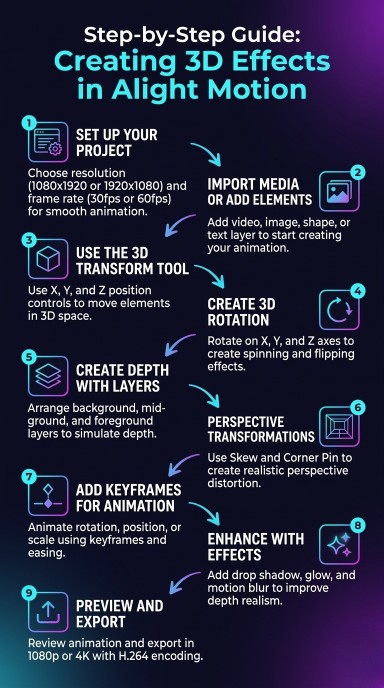
Open Alight Motion and tap the plus icon to create a new project. Choose your resolution 1080×1920 for vertical content like Reels and TikTok, or1920×1080 for YouTube. Set your frame rate to 30fps or 60fps depending on how smooth you want the animation to feel. 60fps looks noticeably better for fast-moving 3D animations.
Step 2: Import Media or Add Elements
Tap the add layer button and choose your starting element. This could be a video clip, an image, a shape, or a text layer. For practicing 3D techniques, I recommend starting with a simple rectangle or text they respond well to transforms and you can clearly see the effect taking shape.
Step 3: Use the 3D Transform Tool
Select your layer and open the Transform options. Here you will find X, Y, and Z position controls along with rotation values on all three axes. The Z-axis is your depth control. Moving an element along Z pushes it closer or farther away, creating the illusion of space. Even a small Z value makes a huge visual difference.
Step 4: Create 3D Rotation
This is where things get exciting. Select your shape or text layer and go to its transform properties. You will see Rotation X, Rotation Y, and Rotation Z. Rotating on the Y-axis creates that classic spinning card effect. Rotating on the X-axis gives a top-to-bottom flip. Try setting Rotation Y to 45 degrees and see how flat your element suddenly looks like it has dimension. To make it spin, you will add keyframes but we will cover that in Step 7.
Step 5: Create Depth with Layers
Depth is everything in simulating 3D. Here is how I set it up: I create at least three layers one for the background, one for the mid-ground, and one for the foreground. The background gets a slight blur and reduced opacity to simulate distance. The foreground element stays sharp and bold. This single trick transforms a flat composition into something that feels genuinely spatial. Label your layers clearly. It saves a lot of confusion when you are animating later.
Step 6: Perspective Transformations
Under transform options, look for Skew and use it to tilt your element along horizontal or vertical axes. This creates a perspective distortion the same visual language used in 3D text reveal animations and product showcase videos. Pair a skewed element with a shadow and it instantly gains volume. You can also use the Corner Pin effect in Alight Motion’s effects panel to manually warp the corners of an image, giving it a surface-mapped 3D look.
Step 7: Add Keyframes for Animation
Now bring your 3D setup to life. Tap the keyframe diamond icon next to any property position, rotation, scale, opacity to record its starting value. Move your playhead forward a few frames, change the value, and a second keyframe is automatically created. Alight Motion will interpolate the motion between them. For a 3D spin, set Rotation Y to 0 at frame 1 and 360 at your last frame. This creates a full rotation loop. Use easing (the curve editor) to make the animation feel natural rather than robotic.
Step 8: Enhance with Shadows, Glow, or Motion Blur
Real depth needs shadows. Go to your layer’s effects and add a Drop Shadow. Offset it slightly down and to one side. Adjust blur and opacity so it looks natural, not cartoonishly heavy. A soft, subtle shadow does far more for perceived depth than an obvious one. Motion Blur is another game-changer. When your element rotates or moves fast, enabling motion blur makes it look like actual camera footage rather than a digital graphic. Glow and Inner Glow effects work brilliantly on 3D-style text, giving it a neon or holographic feel.
Step 9: Preview and Export Your Video
Before exporting, scrub through your timeline and check every keyframe transition. Watch for any jarring jumps or unnatural snapping. Once you are happy, tap export and choose your settings. For social media, 1080p at 30fps with H.264 encoding is the reliable standard. If you need maximum quality for a client or portfolio, go with 4K at 60fps.
Mixing 2D and 3D Effects in Alight Motion
Some of the best edits I have seen combine both 2D and 3D techniques in the same timeline. The contrast between flat and dimensional elements actually makes the 3D parts pop even harder.
Add 2D Elements
Start with flat text, icons, or shape overlays as your base layer. These act as your visual anchor the stable, readable layer that keeps the viewer oriented. Standard 2D elements like subtitles, UI overlays, or flat color backgrounds work perfectly here.
Combine 2D and 3D Layers
Place your 3D-animated elements rotating shapes, parallax depth layers, perspective text on top of or behind your 2D content. Use blending modes like Screen, Multiply, or Overlay blend them naturally. The interplay between the flat and dimensional creates a richness that is hard to achieve with either technique alone.
Add Effects and Final Touches
Color grade your entire composition with a single adjustment layer on top. A slight film grain, a subtle vignette, or a color shift ties everything together. Adding a lens flare or light streak over a 3D-rotating logo element takes it from decent to stunning.
Uses of 3D Effects in Alight Motion
Understanding where these effects shine helps you use them with purpose rather than just for show:
- Text Animations: 3D rotating titles for intros and YouTube thumbnails.
- Logo Reveals: Spinning or depth-pushed logos for brand videos and idents.
- Scene Transitions: 3D cube or flip transitions between clips for dynamic storytelling.
- Social Content: Parallax effects on Instagram Reels and TikTok edits that drive
engagement. - Product Showcases: Perspective transforms on product images for e-commerce and ads.
- Music Videos: Sync 3D animations to beats for visually reactive content.
Pro Tips for Better 3D Animations
Keep it subtle: Overdoing rotation or skew makes elements look broken rather than
dimensional. A 15-20 degree tilt often looks better than 45 degrees.
Use reference frames: Pause on a frame mid-animation and check if the spatial logic makes sense. Does the shadow fall in the right direction? Does the perspective match?
Work at 60fps: Even if you export at 30fps, animating at 60fps gives you twice the keyframe resolution for smoother motion.
Group related layers: If your 3D element has multiple components a shadow, a highlight, a base shape group them. Moving or scaling the group keeps everything aligned.
Study real-world 3D: Before animating a rotating cube, look at how a real cube catches light and casts shadow. The more grounded in reality your simulation is, the more convincing it looks.
Common Mistakes to Avoid
- Skipping the easing curve and leaving motion on linear interpolation it always looks mechanical.
- Using drop shadows that are too dark or too large they draw attention away from the element itself.
- Adding motion blur to slow-moving elements it only works when there is real speed.
- Not organizing layers chaos in your timeline leads to mistakes during keyframing.
- Exporting at low resolution after spending time on detailed 3D work always match export quality to the platform.
- Ignoring frame rate consistency between your project settings and export settings.
Conclusion:
Creating 3D effects in Alight Motion is genuinely one of those skills that pays off immediately. The first time you watch your own spinning text or parallax depth scroll play back smoothly on your phone, it feels rewarding in a way that keeps you experimenting. The app does not pretend to be Cinema 4D and it does not need to be. With the right combination of transforms, keyframes, shadows, and layer depth, you can produce results that look professionally made and compete with anything you see in your feed. Start with one technique. Master the parallax depth layers, or just nail the Y-axis spin. Then layer in the rest. Your edits will level up faster than you expect.