How to Import XML File in Alight Motion? Complete Guide (2026)
You’ve sure seen creators uploading a “XML File” in the context if you’ve noticed smooth shake effects, beautiful transitions, or expert edits on YouTube, Instagram Reels, or TikTok. Many beginners are confused of the functions of this file or how to correctly import XML files into Alight Motion.
This comprehensive guide will explain to you how to import XML files into Alight Motion on Android, why XML import isn’t possible on iOS, how to export your own XML presets, and how to resolve frequent issues like “Unsupported XML Version,” “File Not Recognized,” and app Stops working.
What is an XML File in Alight Motion?
An XML file in Alight Motion as a “blueprint” or a “recipe” for an edit.
It’s a small text file that saves all the information about a project’s effects and settings. This includes all the keyframes, effect settings, layer positions, and color grading.
It does not contain the actual video or music files, only the instructions on how to create the effect.
Why Use XML Files in Alight Motion?
Using XML files in Alight Motion gives editors a huge Advantages:
Save Massive Amounts of Time: Instantly apply complex effects (like shakes, text animations, or transitions) that would take you hours to create from scratch.
Access Pro-Level Edits: You can use high-quality presets made by more experienced editors to give your videos a professional polish.
Learn New Techniques: This is the secret weapon for learning. By importing an XML, you can deconstruct it layer by layer to see exactly how a complex effect was built.
Easy to Share: You can share your own unique style with friends or followers by exporting your own XML files.
How to Import XML Files on Android (Step-by-Step Guide)
This is where most users get stuck, because the process is not what you expect. You do not use an “Import” button inside the Alight Motion app. The most reliable method is to “Share” the file to the app. Here are the best methods that work every time.
Method 1: Import Using File Manager
(The Easiest & Best Method)
This is the most reliable method for 99% of users.
Download the XML File: You need to access that preset file or folder from your provider it maybe a creator or seller. You will see a download folder on your mobile it will saved there.
Open Your File Manager: Open the folder name with the “File Manager” or it will be My Files” in your mobile.
Find the File: Navigate to your ‘Downloads’ folder and find the .xml file you just downloaded.
Share to Alight Motion: Long-press the XML file to select it. Tap the ‘Share’ icon.
From the list of apps that appears, find and tap the ‘Alight Motion’ icon.
You will see a small “Project Imported” message at the bottom of your screen. That’s it!
Now, open your Alight Motion app. The new project or element will be at the top of your “Projects” list, ready to use.
Method 2: Import Through Google Drive
If someone shares a preset with you on Google Drive, the process is just as easy.
- Open the XML file in your Google Drive app.
- Tap the three dots in the top-right corner.
- Select ‘Send a copy’ (or ‘Open with’).
- From the list of apps, find and tap the ‘Alight Motion’ icon.
- It will automatically import the project.
How to Import XML Files on iOS (iPhone & iPad)
This is a major point of confusion for new users. Let’s be very clear You cannot directly import an .xml file on an iPhone or iPad. The iOS version of Alight Motion does not support this file format.
Instead, the iOS community uses two different, much easier methods.
QR Code Method:
Creators will share a special QR code for their preset.
- In Alight Motion, open your project.
- Tap the + icon, go to ‘Elements’, and select the Scan QR Code option.
- Scan the code from another screen, and the effect will be imported.
Alight Cloud Link Method:
By the way it is very easy to use and most common method in this time, you will get this alight link from creators.
- Simply tap on this link.
- Your phone will automatically open Alight Motion.
- A pop-up will ask if you want to import the project. Tap ‘Import’. The project is now in your app.
How to Export XML Files in Alight Motion
If You Want to share your own preset:
- Finish your project or create the effect you want to share.
- Tap the ‘Share’ icon in the top-right corner of the screen.
- Scroll down to the bottom of the sharing options.
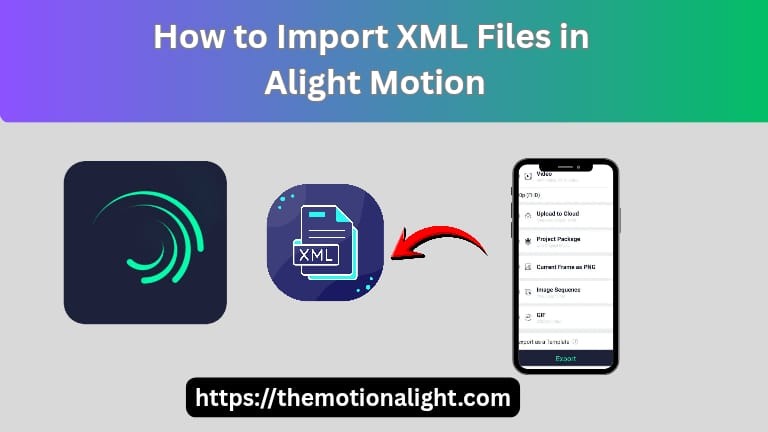
- Select ‘Export Project Package (XML).
- Tap ‘Export’, and the app will create a .xml file (on Android) or a shareable link (on iOS) that you can send to others.
Common Issues & How to Fix Them
Yes! if your facing errors with this now here is the solution for your problems.
File Not Recognized (or “Can’t open file”)
Problem: Clicking on that XML File madly in download folder and you’re phone does not know what to do with this file now.
Solution: Do not “open” the file. Now you have to share this file with Alight Motion by long pressing on file and tap share to the Alight Motion app.
Import Option Not Showing
Problem: You’re inside the Alight Motion app but can’t find an “Import XML” button.
Solution: The import button is not where you think it is. Follow Method 1 above. The entire process happens outside the app, from your File Manager’s “Share” menu.
App Crashing While Importing
Problem: The app closes or freezes when you try to import the file.
Solution: This is a common and frustrating issue. It usually means one of two things:
The file is corrupted: Try downloading it again from a different source.
You have an old version of the app: Don’t need to worry about this we are here to solve this preset was made on new version and you have a old version now. So just update you’re app now.
Storage / Permission Issues
Problem: Are you facing the issue of storage problem or error while importing?
Solution: Look for your Settings in phone > Apps > Alight Motion > Permissions and try to check that storage is allowed or not, if not then make it allow otherwise leave it.
Unsupported XML Version Issues
Problem: You see a specific error message: “Unsupported XML Version.”
Solution: This is a clear sign that the preset was made on a newer version of Alight Motion than the one you are using. You must update your Alight Motion app from the Play Store to import this file.
Pros & Cons of Using XML Files in Alight Motion
Pros:
Massive Time-Saver: Do you need amazing eye catchy, attractive and professional-level effects in just a few seconds?
Incredible Learning Tool: Deconstruct projects to see exactly how pro-level effects are built.
Access to Community Trends: You can use immediately that same eye catchy, and trendy as you’re editor.
Easy to Share: Share your unique style with your friends or followers.
Cons:
Version Conflicts: This is the biggest frustration. A preset made on v5.0 will not work on an app that is still on v4.5.
Safety Risk: You must download files from trusted sources. A malicious file from a random website could be a security risk.
Not Supported on iOS: XML files are not supported on iOS devices (iPhone or iPad).
This is why many users get confused when trying to open or import an XML file on iPhone. The iOS version of Alight Motion cannot import XML files at all.
Instead, iPhone users can only use:
- QR Codes
- Alight Cloud Links
Conclusion:
You may improve your editing skills right away by learning how to import XML files into Alight Motion. XML presets let you to edit more quickly, carefully, and professionally, whether you’re looking for speed modifications, trending shaking, or smooth transitions. You may now explore thousands of presets and advance your Alight Motion modifications because you know how to import, export, and resolve every XML problem.