Learn How to Do Transitions in Alight Motion Complete Guide 2026!
Professional video editing isn’t just about the clips you film. It’s actually about the
way you connect them. In 2026, everyone wants smooth storytelling, and learning
Alight Motion transitions is the quickest way to make a basic edit look viral. Whether
you’re making an AMV or a simple social media ad, this guide will show you how to
get that flow right.
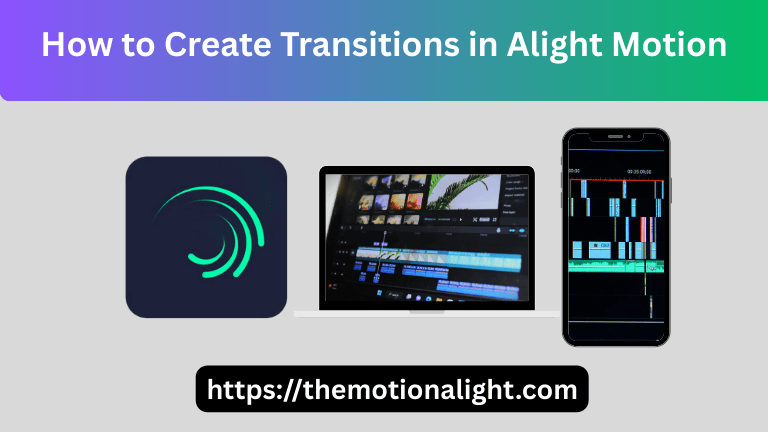
What Is a Transition in Video Editing?
A transition is just a visual bridge between two different clips. Instead of a “hard cut”
where one video just snaps into the next, a transition blends them together. It keeps
the video moving naturally so your viewers don’t lose interest.
What Is Alight Motion Transition?
In Alight Motion, transitions aren’t just simple buttons you click. While you can find
presets, a real “Alight Motion Transition” is usually made by hand using keyframe
animation. You move, scale, and rotate layers using interpolation graphs to get that
fluid motion you see in top-tier edits.
Why Use Transitions in Your Videos?
- Pro Look: Good transitions hide the fact that you’re editing on a phone.
- Keep Viewers Hooked: Smooth movement stops people from scrolling away.
- Vibes: A slow fade feels different than a fast, aggressive shake.
Types of Transitions in Alight Motion
Smooth Transitions in Alight Motion
These are the most popular. They depend entirely on your easing graphs. Without a
good graph, your transition will look like a robot made it. You get this look by
speeding up the end of the first clip and slowing down the start of the second one.
Custom Transitions in Alight Motion
Custom transitions are made in the Move & Transform tool. You don’t use the
standard effects here; instead, you mix things like “Zoom out” and “Rotate” to build a
style that’s totally yours.
Blur & Motion Transitions
Motion blur is the real secret. It mimics how a real camera works. It makes fast
moves look natural instead of looking like a glitch slideshow.
Shake Transitions
You’ll see these in gaming edits or hype music videos. You use effects like “Oscillate”
to add some energy right where two clips meet.
Fade Transitions
This is the easiest way to show time passing. You just animate the opacity from
100% down to 0% and back up again.
Multiple Ways to Use Transitions in Alight Motion
Method 1:
The Preset Way: You go into the effects menu, hit “Add Effect,” and just pick
something like a blur or distortion. It’s fast but everyone uses it.
Method 2:
Manual Key framing: This is the pro way. You go into Move & Transform, set your
points at the end of Clip A and the start of Clip B, and move the screen yourself.
Method 3:
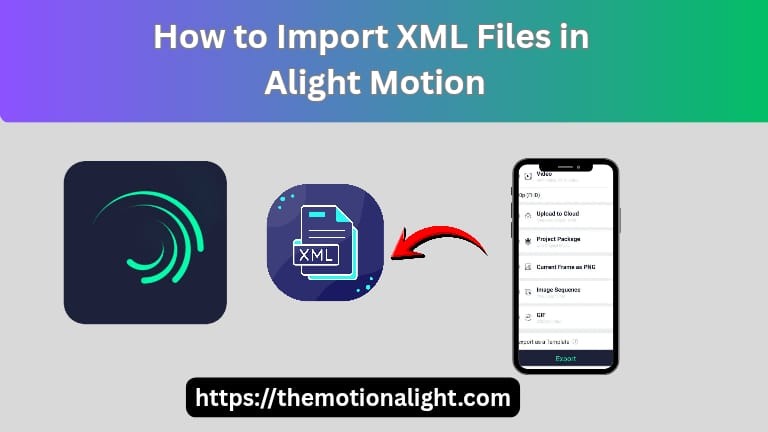
XML Files: A lot of editors share XML links or QR codes. You just import the file and
swap their clips for yours. It’s a huge time-saver.
Step-by-Step Guide on How to Do Transitions in Alight Motion
Create a New Project
Open the app, hit that plus icon, and pick your size. Make sure you set it to 30fps or
60fps so the motion stays clean.
Import Clips or Images
Hit the media button and grab the two clips you want to work with.
Arrange Clips on Timeline
Line them up side-by-side. Don’t leave any black gaps between them. If you’re doing
a fade, let them overlap just a little bit.
Add Keyframes for Custom Transitions
Tap your first clip and go to Move & Transform. Put a keyframe at the very end and
another one about half a second before that.
Apply Transition Effects
On that last keyframe of Clip 1, push the image off the screen. Then, on the first
keyframe of Clip 2, bring it back in from the other side.
Use Graphs to Smooth Transitions
Go into the graph editor. For Clip 1, pull the curve down (Ease Out). For Clip 2, pull it
up (Ease In). This makes the move feel “snappy” and elastic.
Preview & Adjust
Watch it back. If it feels stiff, mess with those graph handles until it looks right to your
eye.
Export Your Project
Hit export at the top right and you’re done.
How to Do Transitions on Alight Motion App (Manual Process)
How to Customize the Transition Effect in Alight Motion?
Don’t just stick to one effect. Stack them. Use a slide but add a little “Brightness”
flicker or some “Lens Blur” at the moment they switch. It makes it pop.
How to Apply Transition Effects on Audio Tracks?
People forget audio. Use volume keyframes to dip the sound or add a “Whoosh”
sound effect right at the transition point. It makes the whole thing feel more real.
Top Transition Ideas for Alight Motion Users
- 3D Cube Flip (uses the 3D flip effect).
- Glass Break (uses masking).
- Luma Fade (uses brightness levels).
Popular Alight Motion Transitions
Top Transition Effects to Try
Stick with zooms and spins. They work for almost any video you’re making.
Further Details on Transition Effects
Always use the “Tiles” effect and turn on “Mirror.” This stops those ugly black edges
from showing up when you move the clips.
How to Make Smooth Transitions in Alight Motion?
How to Apply Smooth Transition in Alight Motion?
It’s all about speed. If the first clip ends fast, the second one has to start fast. If they
don’t match, the transition will look “laggy.”
Tips to Improve Your Transitions in Alight Motion
Valuable Tips for Smooth Transition Effects
You can actually copy and paste graphs. Once you make a perfect curve, just paste
it onto your other clips to save time.
Tips to Do Transitions Quickly
Create your own presets. Don’t draw the same graph 50 times a day. Save it once
and reuse it.
Tricks to Make Transitions More Amazing
Try layering. Use a movement transition and a “Color Flash” at the same time for that
high-energy edit style.
How to Create More Seamless Transitions?
Follow the movement. If Clip 1 slides right, Clip 2 should also come from the left and
move right. Don’t fight the direction.
Advanced Techniques for Transitions
Custom Transitions
Use Null Objects. It’s a pro trick where you link clips to a single “controller” layer so
they move perfectly together.
Blur and Motion Effects
Try “Directional Blur.” It looks a bit more artistic than the standard motion blur
everyone else uses.
Transition Optimization & Export
Preview
If your phone is lagging, preview in low quality. But always check the movement one
last time before you hit export.
Export Settings
Use H.264. It’s the best for keeping quality high without making the file size huge.
Video Guide on How to Make Transitions in Alight Motion
Sometimes you just need to see how the graph handles are pulled. Watching a quick
screen recording of the process helps it click.
Conclusion
Learning transitions in Alight Motion takes time. You’ll go from using basic buttons to
really understanding how motion works. Focus on your graphs and keep it smooth.